Unless stated otherwise, digital images should be prepared as follows:
Maximum width: 1600px
Maximum height: 1200px
Colour space: sRGB
The easiest way to do this is to store the parameters as presets so you don’t have to change it every time.
Lightroom
Select your chosen photos and click Export button, or select Export from the File menu at the top, or right click one of the images and select Export -> Export.
In the Export dialog, set the following:
File Settings
Image Format: JPEG
Colour Space: sRGB
Image Settings
Resize to Fit: Width & Height
W: 1600 H: 1200 pixels
Do not add a watermark.
All other settings are optional (where you export to, quality, resolution, sharpening etc).
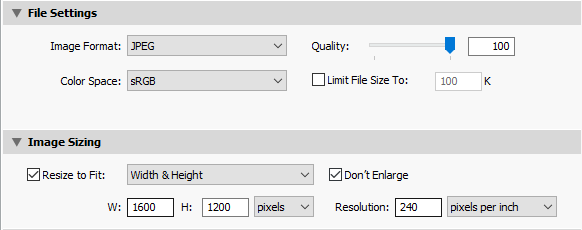
When all your settings are correct, click the Add button at the bottom of the Preset list and give the new preset a name (eg. HCC Upload). If you have lots of presets, you may want to separate them into different folders. You can do this in the New Preset dialog by clicking the dropdown on the folder and selecting New Folder, then entering a folder name.
Once you have saved the preset, click Export to export the image(s).
Next time you want to export, you can select Export with Preset from the File menu, then select the preset.
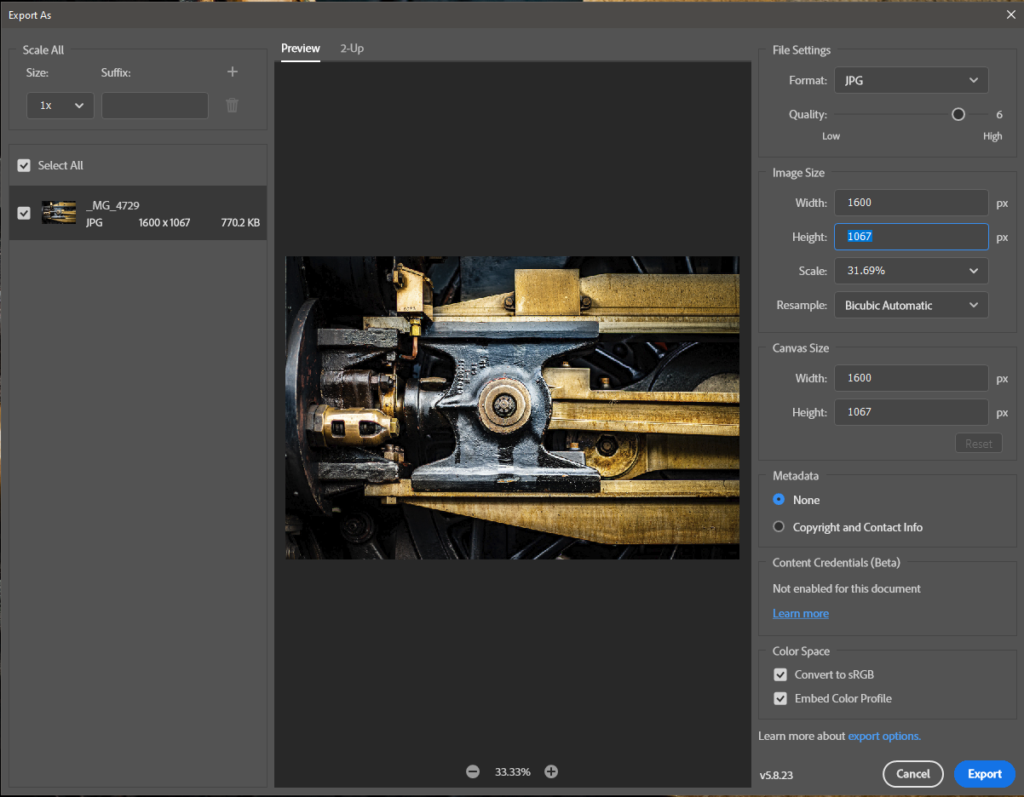
Photoshop
Select Export As from the main File menu.
In the Export As dialog, leave the Scale All set to 1x and make sure you only have the image you want selected.
File Settings
Format: JPEG
Image Size
Set the Width: to 100px and the Height and Scale will adjust automatically.
If the Height is more than 1200px, set the Height: to 1200px and the Width and Scale will adjust automatically.
Color Space
Ensure Convert to sRGB and Embed Color Profile are checked